
Managing Media Sharing Settings
Media sharing allows publishers to upload videos once and then share the videos to other accounts. The accounts can be your own, corporate accounts or accounts of other publishers. The shared videos can then be used independently in the other accounts. The Media Sharing page is used to manage the sharing relationships between accounts.
Media sharing can also be implemented programmatically using the CMS API. For more information, see Media Sharing with the CMS API.
This topic will use the following terminology:
- Master - The account that created the original video. The Master owns the content and is responsible for setting up, managing and providing content to Affiliates.
- Affiliate - The account that is receiving the video. The Affiliate can accept content shared to it from a Master.
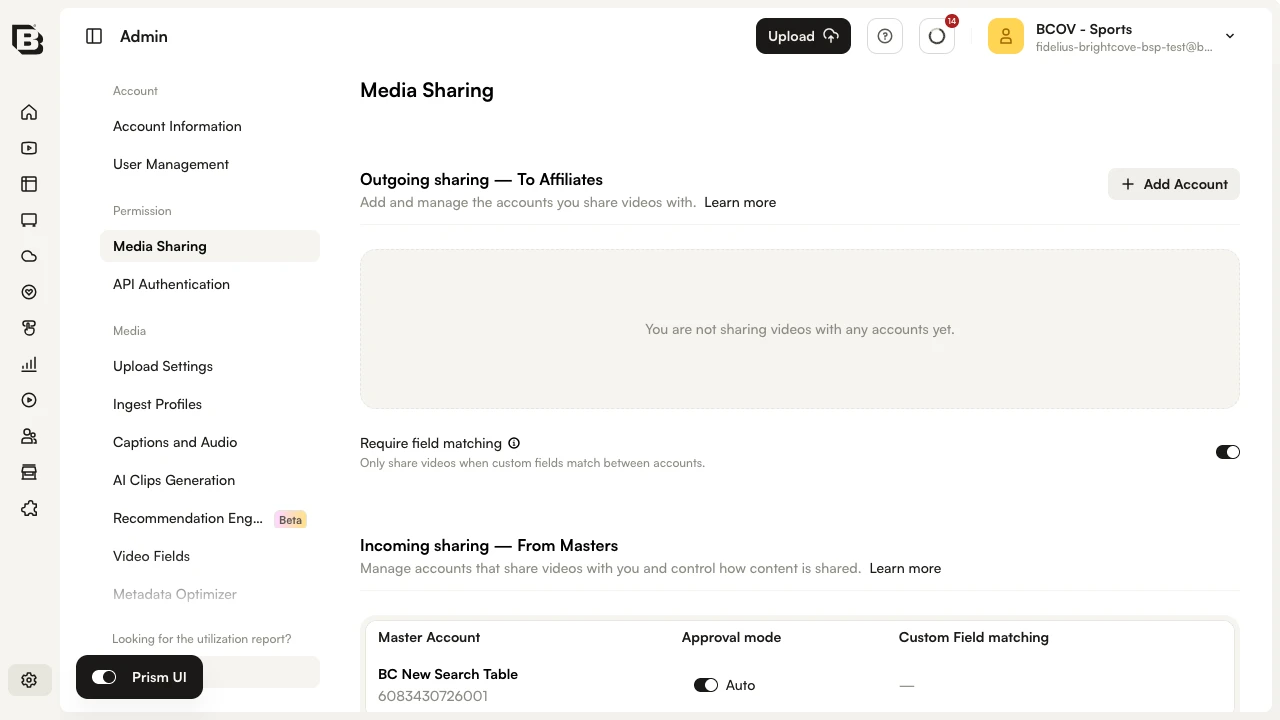
To open the Media Sharing page, sign in to Brightcove CorpTV, open the Admin module, and under Permission in the Admin sidebar, click Media Sharing. The page is split into two sections:
- Outgoing sharing — To Affiliates — accounts you share videos with
- Incoming sharing — From Masters — accounts that share videos with you
Enabling media sharing
To enable media sharing, contact Brightcove Customer Support and have them turn on media sharing for your account.
Adding affiliates
To share videos with another account, an affiliate account must be added. To add an affiliate, follow these steps:
- Sign in to Brightcove CorpTV as an Administrator.
- Open the Admin module and, under Permission, click Media Sharing. You must be an account administrator to access the Admin module.
- In the Outgoing sharing — To Affiliates section, click Add Account. The Add Affiliate Account dialog opens.
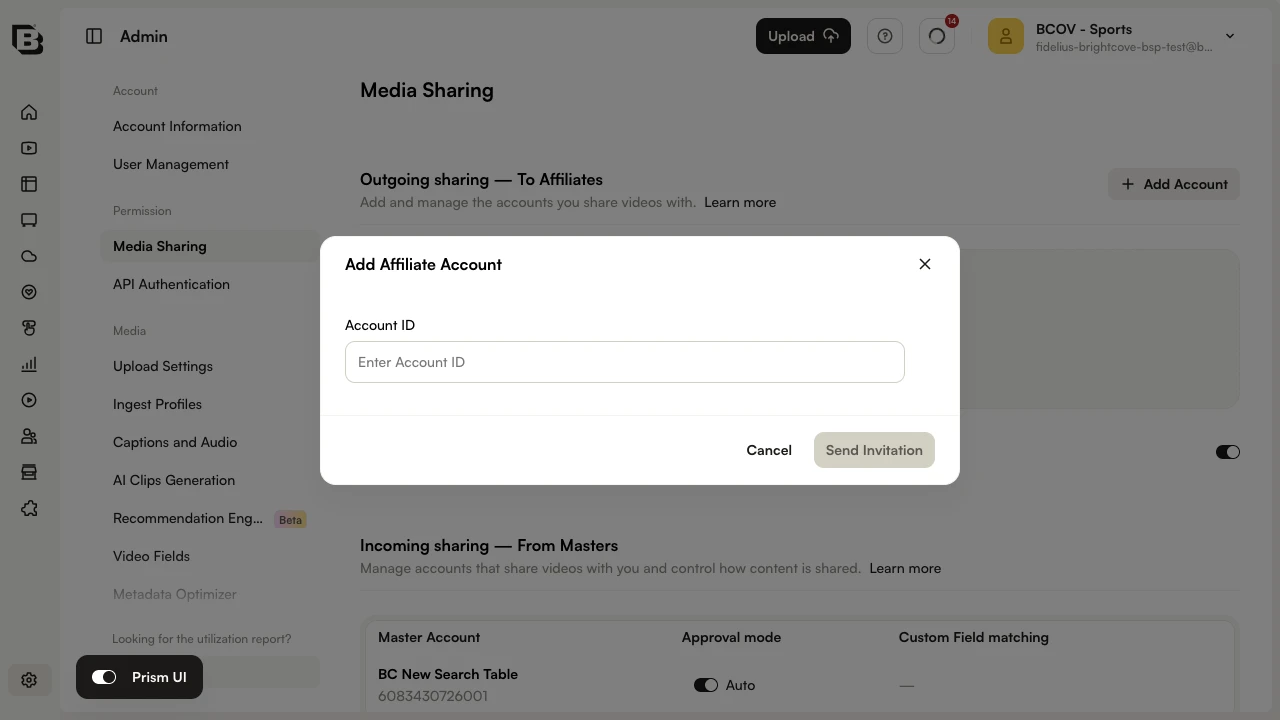
- In Account ID, enter the account ID of the affiliate.
- Click Send Invitation.
The account is added to the Outgoing sharing table with a status of Pending. The affiliate account will receive a media sharing notification and be able to accept or reject the relationship. Once the affiliate accepts, the relationship moves to Accepted.
Custom field matching
The Require field matching toggle, located between the Outgoing sharing and Incoming sharing sections, controls whether affiliate accounts must have the same custom fields as the master account. When the toggle is on, videos are only shared when custom fields match between accounts; if the affiliate is missing a matching field, the share will fail.
Notes
- Custom field matching only verifies that the internal field names exist in both accounts. The type of the field (List or Text) does not matter.
-
If the master account requires custom field matching and shares a video with a custom field value that is not allowed by the affiliate account, the share will fail.
If the master account does not require custom field matching and shares a video with a custom field value that is not allowed by the affiliate account, the share will succeed but the field with the disallowed value will not be included on the affiliate copy of the video.
- If a shared video in the master account is configured with geo filtering, affiliate accounts must also be enabled for geo filtering or the share will fail. Any geo filtering configured on the shared video will also be applied in the affiliate account(s). To enable an account for geo filtering, please contact Brightcove Support.
Removing affiliates
To remove an affiliate account, hover over the row in the Outgoing sharing table and click the End sharing (trash) icon. The End Sharing Relationship dialog appears, asking you to confirm the action.
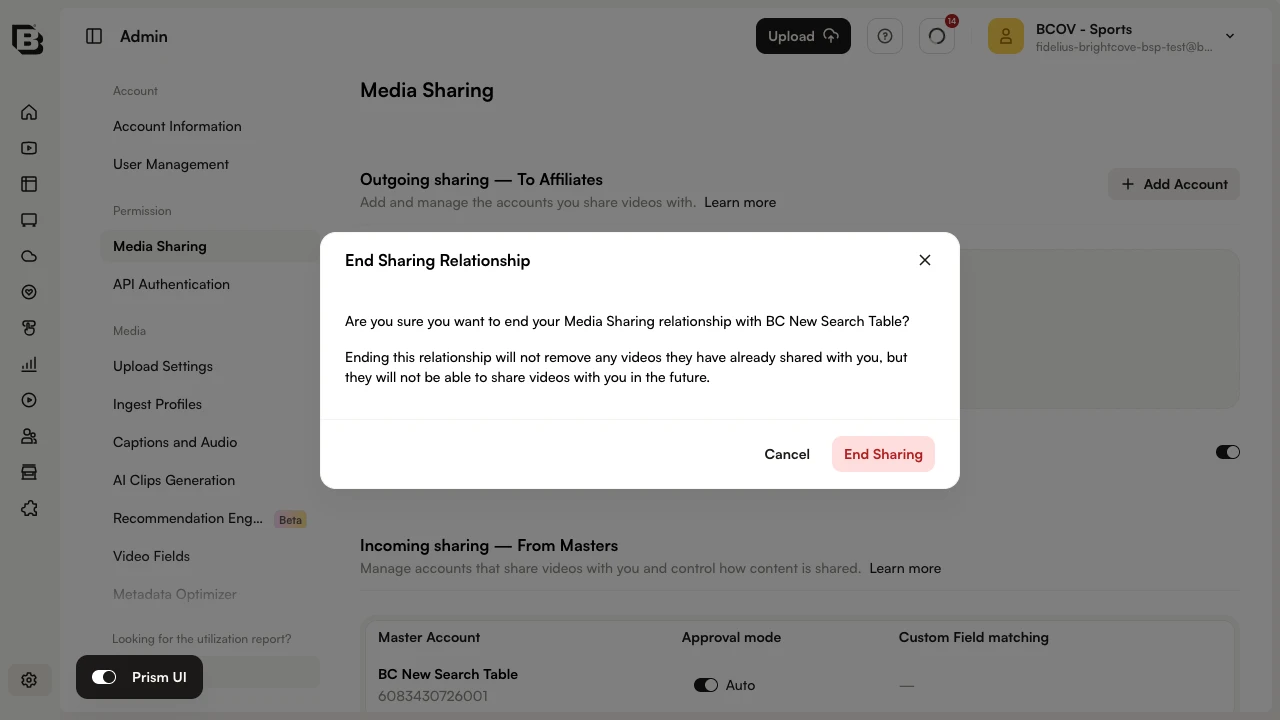
Click End Sharing to end the sharing relationship. Ending the relationship does not remove videos that have already been shared, but no further videos will be shared with that account.
Approving / rejecting media sharing relationships
If another account adds your account as an affiliate (i.e. wants to share videos with your account), the invitation appears at the top of the Media Sharing page when you open it.
If Require field matching is on, the affiliate account must have the same custom fields as the master account or any shares will fail.
To reject the invitation, click Reject. To accept it, choose an Approval mode and click Approve:
- Auto - Automatically accept shared videos. Shared videos appear in the Media module list of videos.
- Manual - Review shared videos before adding them to the media library. The Media module displays a Shares Pending entry in its sidebar.
Once approved, the relationship appears in the Incoming sharing — From Masters section.
To change the approval mode for an existing relationship, hover over the row in the Incoming sharing table and click the Manage Sharing Relationship (pencil) icon. The Manage Sharing Relationship dialog opens.
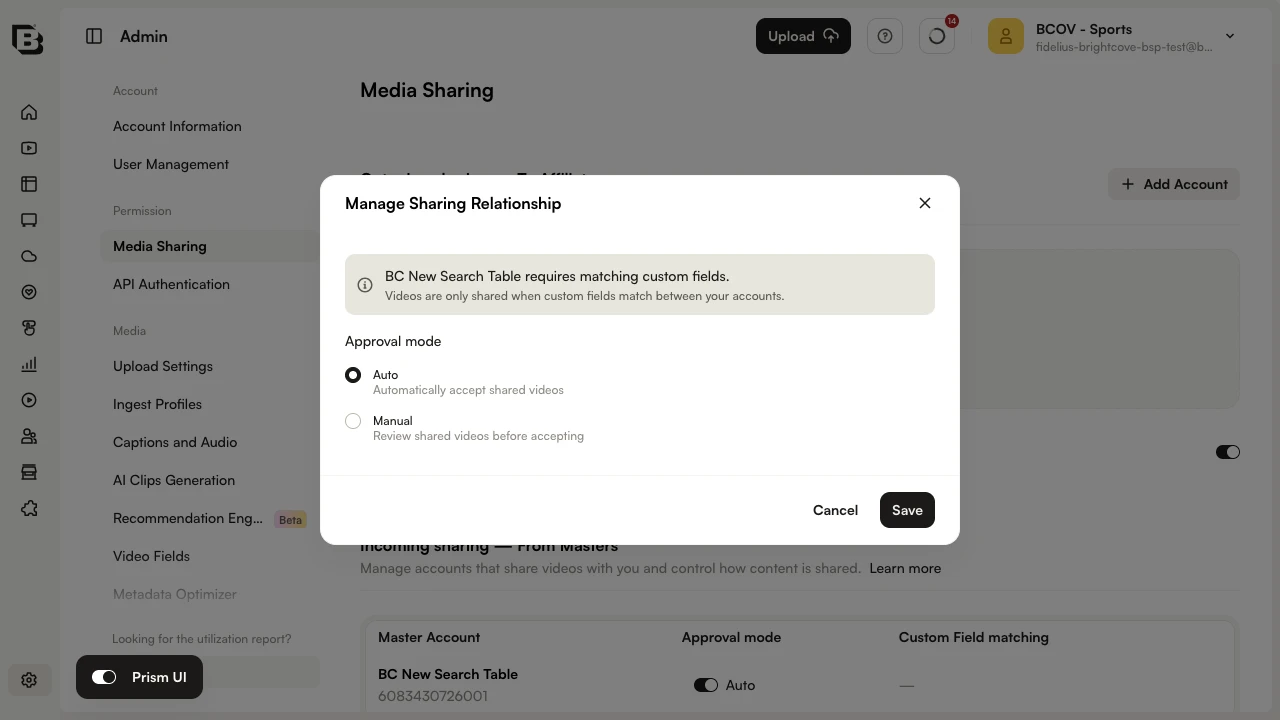
Select Auto or Manual and click Save. To end the relationship instead, hover over the row and click the End sharing (trash) icon.